Place to Mingle

Tutorial

How to use Place to Mingle

A friendly, step-by-step guide — from creating your account to your first event, match, and message. Take it one section at a time; there's no rush.

Step 1

Getting started

Create your account, tell us a little about yourself, and set where you are — that's all it takes to start seeing people and events near you.

  1. Sign up with your email or a Google account — it only takes a minute.
  2. Complete your profile: add a photo, a short bio, and your name as you'd like it shown.
  3. Pick a few interests so we can suggest the groups, events and people you'll actually enjoy.
  4. Set your location (or let us find your area) so everything you see is genuinely nearby.
Tip: adding a photo and a few interests helps people and groups find you — and makes the suggestions you see far more relevant.
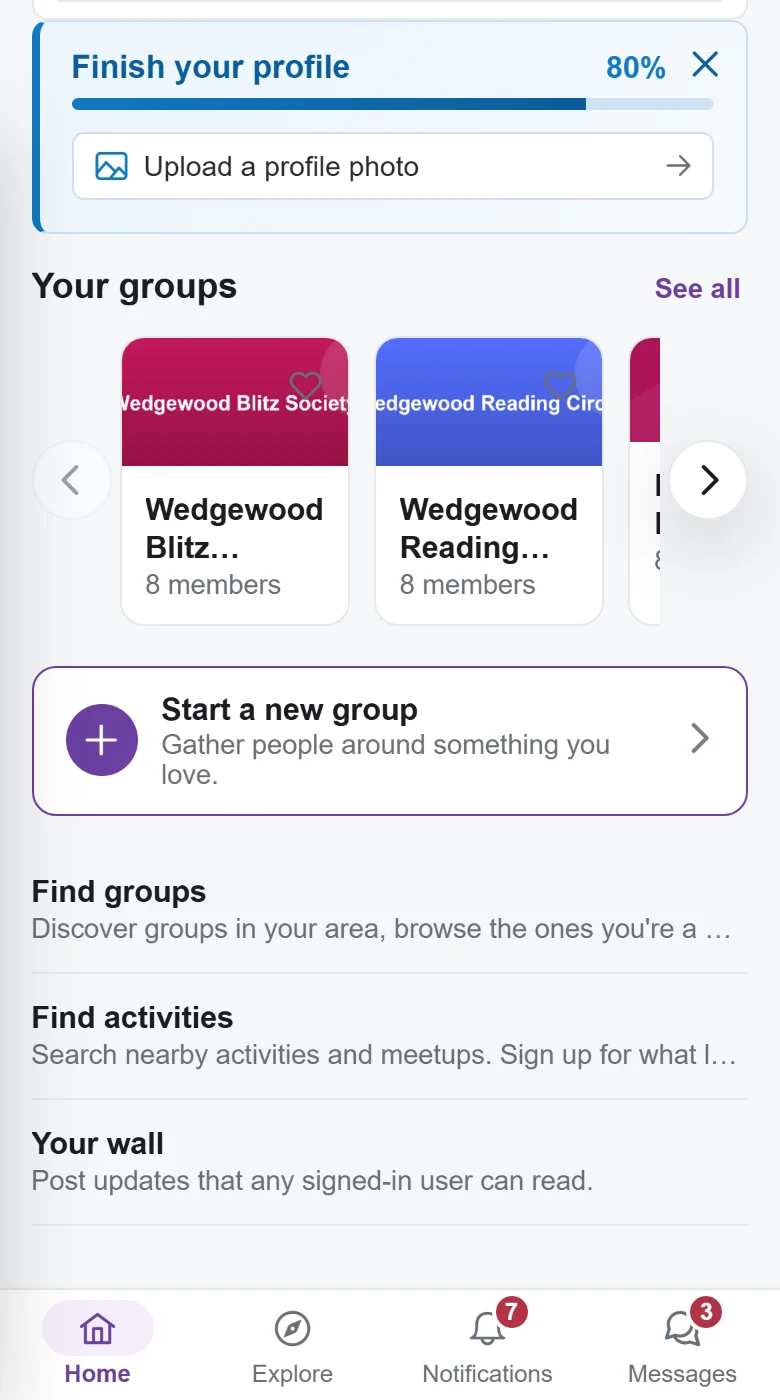
Your home page shows how complete your profile is, and the next thing to add.

Step 2

Finding & joining groups

Groups are communities built around a shared interest — hiking, board games, a neighborhood, a hobby. Join the ones that fit and you'll see their events and conversations.

  1. Tap Find groups on your home page and browse by category, or search for a topic, a city or a ZIP code within the distance you choose.
  2. Tap a group to read what it's about, see who's in it, and check its upcoming events.
  3. Hit Join. If the group needs approval, the organizer is notified and you'll hear back soon.
  4. Once you're in, the group's events and conversations appear in your feed.
Good to know: joining is free and you can leave any time. Some groups are open; others ask the organizer to approve you first.
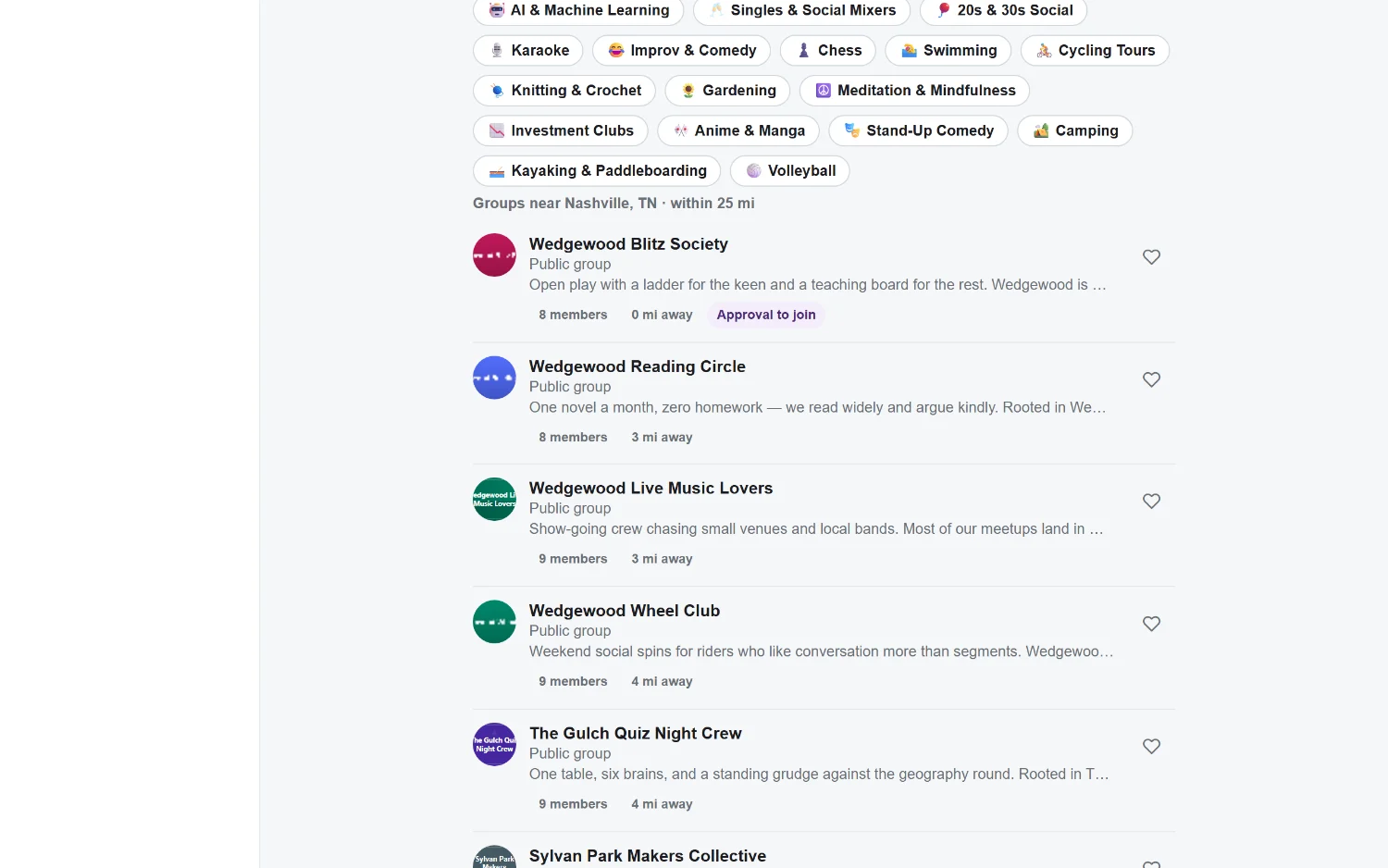
Groups near you, with how far away each one is and whether it asks for approval to join.

Step 3

Discovering & RSVPing to activities

Activities are the get-togethers — in person or virtual. Find one you like, RSVP so the organizer knows you're coming, and it lands on your calendar automatically.

  1. Find an activity from your feed, from a group, or by searching Explore.
  2. Open it to see the date, place (or video link), who's going, and any details.
  3. Tap RSVP to reserve your spot — add a +1 if the event allows guests.
  4. It's now on your calendar. If the event is full, join the waitlist and we'll let you know if a spot opens.
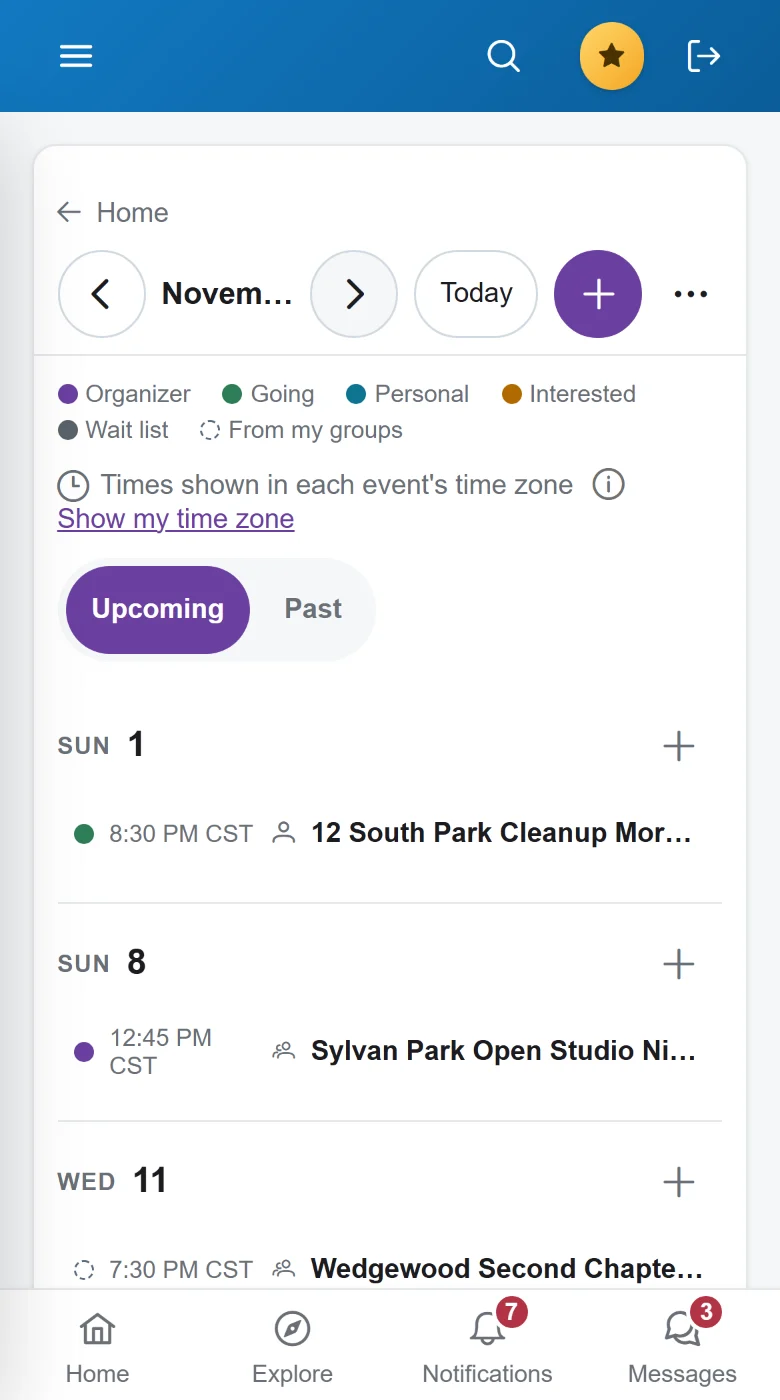
Your calendar fills in as you RSVP: green is going, purple is hosting, and dotted entries are coming up in your groups.

The calendar

Everything you've RSVP'd to shows on your calendar so you never double-book. Add an event to your own calendar app with one tap.

Waitlists

If an event is full you can join the waitlist. When a spot opens, the next person is offered it automatically — and you'll get a notification.

Bring a guest

Many events let you add a +1 when you RSVP, so you can bring a friend along.

Step 4

Using Dating

Dating is a separate, opt-in space. Set up a dating profile, swipe through people nearby, and when you both like each other you match and can start chatting. Prefer to keep it platonic? Switch to the Friendship track.

  1. Turn on Dating and set up a dating profile — separate from your main profile.
  2. Choose what you're looking for: dating, the Friendship track, or both.
  3. Discover people from your own communities in a card stack — like to connect, pass to skip.
  4. When you both like each other, it's a match — open the chat and say hello. On Plus and Premium you can switch it to end-to-end encrypted.
Date safely: verify your profile to earn a badge, chat inside the app before sharing personal details, and meet in public for the first time. You can unmatch, block or report anyone at any point.
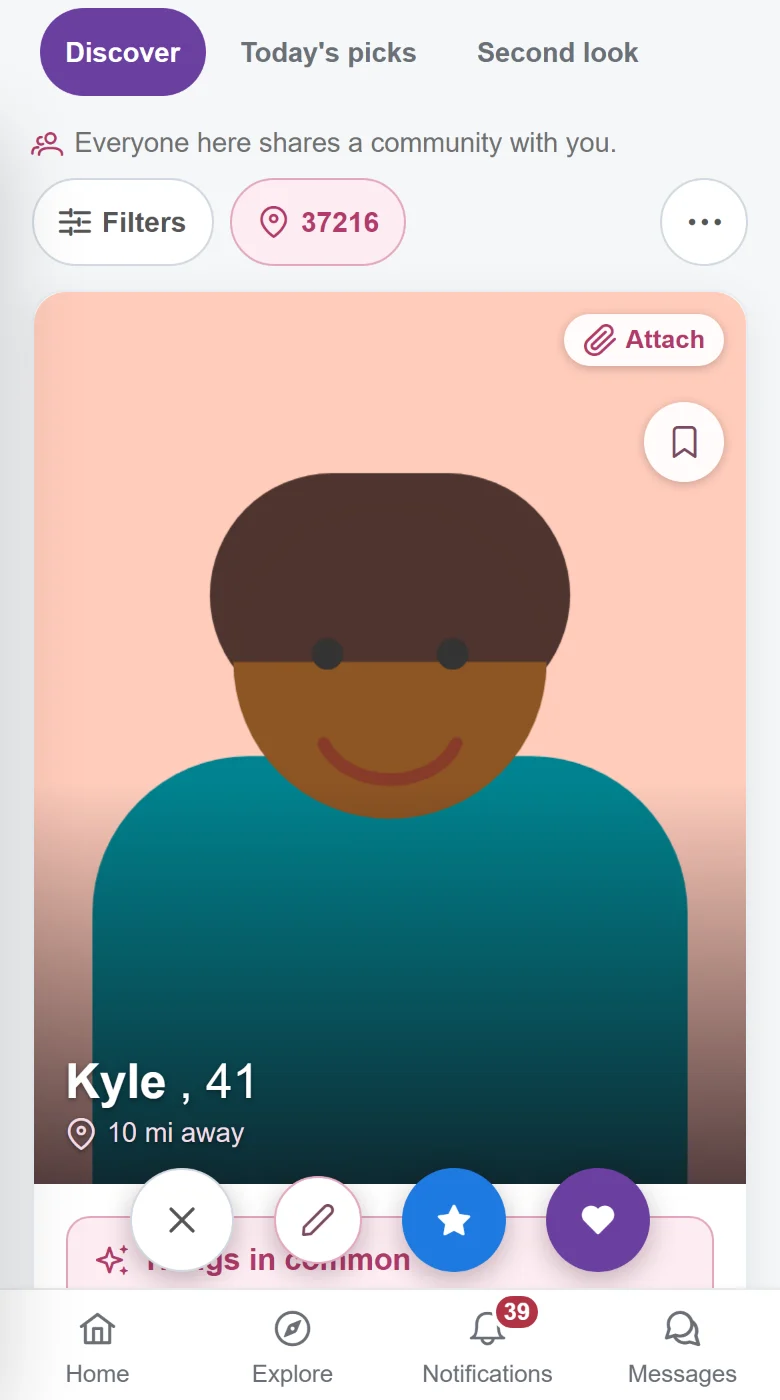
Everyone in your deck shares a community with you. Swipe or tap: like to connect, pass to skip.

Step 5

Messaging — Chat, Encrypted & Comments

There are three ways to talk, each for a different moment. Here's when to reach for which.

Chat

Use it for: quick, in-the-moment talk. Live, public conversation inside a group or event. Great for "running 5 min late" or rallying the group before a meetup. Messages are realtime and visible to the channel.

Encrypted chat

Use it for: private conversations. End-to-end encrypted messages — only the people in the conversation can read them, never our servers. Use it one-to-one (including with a dating match) or in the encrypted room a group or event keeps for its members. Look for the lock icon. Included with Plus, Premium and Organization plans.

Comments

Use it for: lasting discussion. Forum-style threads that stick around — ask a question on an event, share a recap, or discuss a topic. Not realtime; perfect when there's no rush and you want it to be easy to find later.

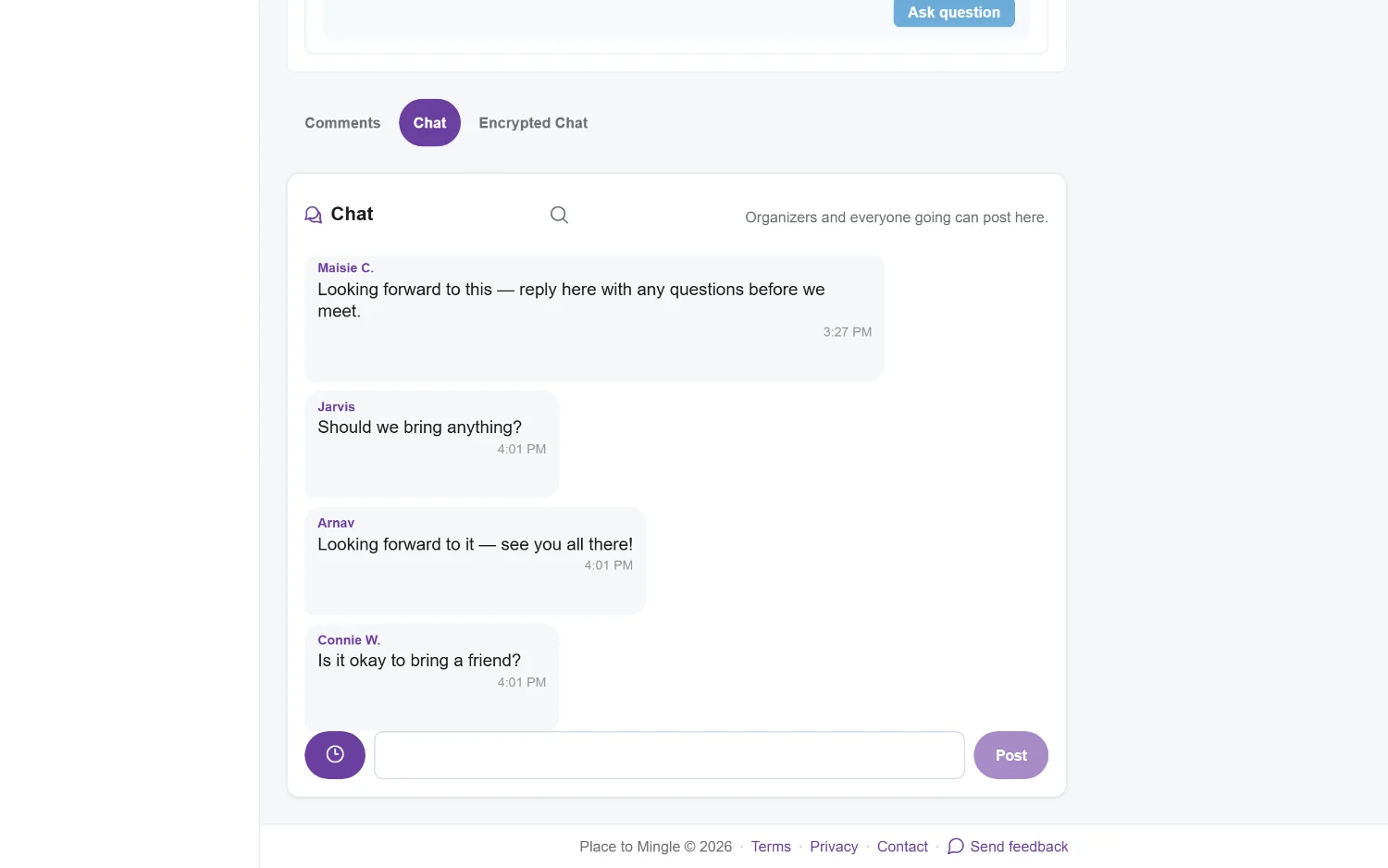
On an event, all three sit side by side: Comments, the live Chat, and Encrypted Chat for the people going.

Step 6

Staying safe

You're always in control of who can reach you and what you share. A few tools to keep your experience comfortable.

Verification

Verify your profile to earn a badge that shows others you're a real person. It's quick, and you can choose to only connect with other verified members.

Block & report

Block anyone to stop all contact, or report behavior that crosses a line. Reports go to our moderation team and are confidential.

Privacy controls

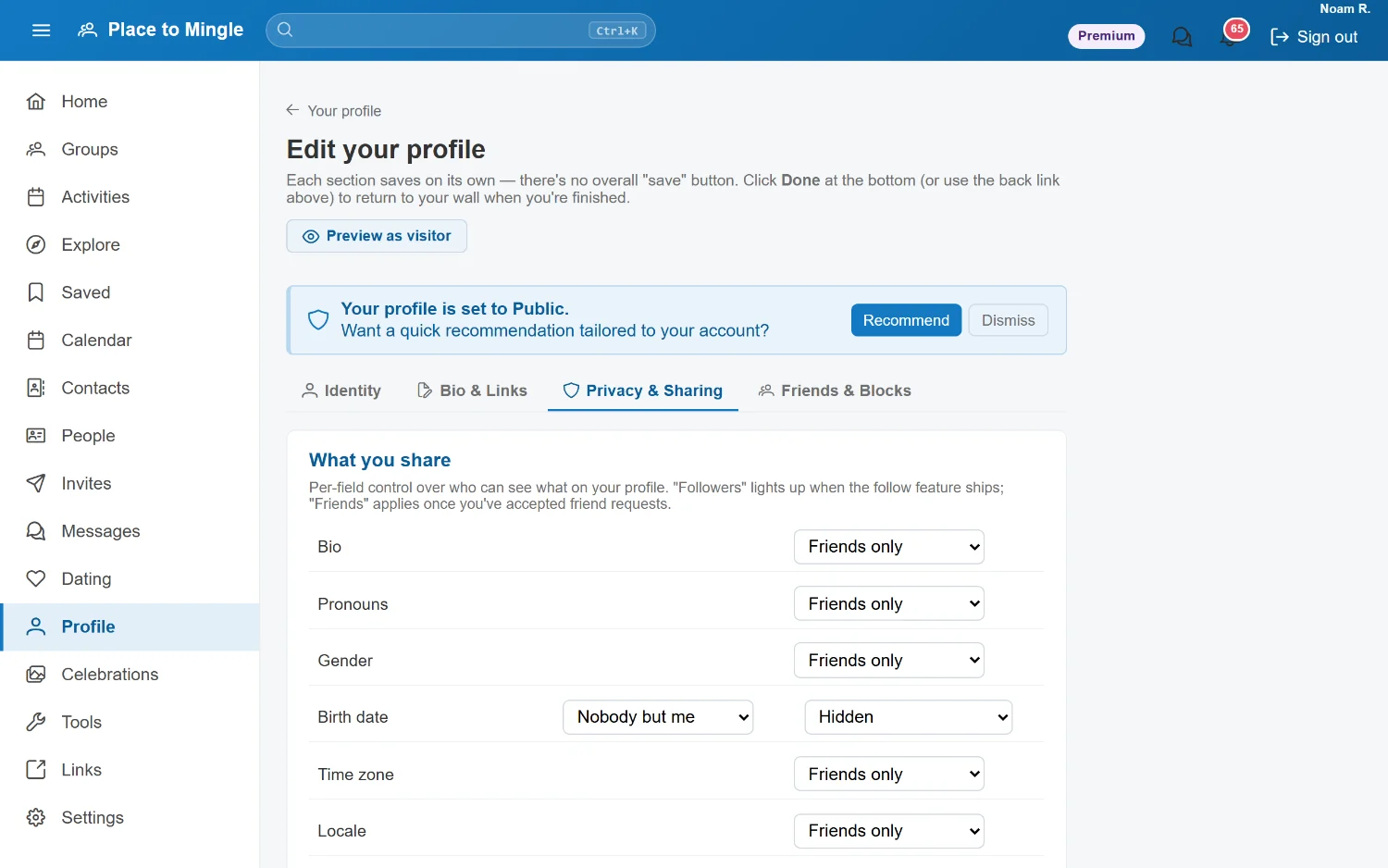
Decide, field by field, who sees each part of your profile: everyone signed in, only your friends, or nobody but you. Keep your distance hidden, switch your whole profile to friends-only, or pause your dating profile any time.

What you share: pick who sees each field of your profile, one by one.
Trust your instincts. If something feels off, you never have to engage. Unmatch, block, report — and our team is here to help.

That's the tour. Ready to dive in? Sign up and you'll be set up in minutes — then come back to any section here whenever you need a refresher.